> ## Documentation Index
> Fetch the complete documentation index at: https://monadfoundation-40611fb6-devops-1498-direct-udp-implementat.mintlify.site/llms.txt
> Use this file to discover all available pages before exploring further.
# How to index every WMON transfer using QuickNode Streams
In this guide, you will learn how to use QuickNode Streams to index every [WMON](https://testnet.monadvision.com/token/0xFb8bf4c1CC7a94c73D209a149eA2AbEa852BC541) transfer, including internal transactions, on Monad Testnet.
## What is QuickNode Streams?
[QuickNode Streams](https://www.quicknode.com/docs/streams/getting-started) is a web3 data streaming solution supporting real-time and historical Monad data that offers:
* **Reliable Data Delivery** - Exactly-once, guaranteed delivery, seamlessly integrating with your data lake. Streams ensures every block, receipt, or trace is delivered exactly-once in the order of dataset finality, preventing issues like corrupt or missing data
* **Real-Time Data Consistency** - Consistent, live data streaming
* **Efficient Historical Data Handling** - Configurable date ranges and destinations for streamlined historical data management
* **Easy Integration** - Simple setup through a user-friendly interface
* **Transparent User Experience** - Clear logging, metrics, and usage tracking
## Setup Guide
### 1. Initial setup
1. Sign up for [QuickNode](https://dashboard.quicknode.com/?prompt=signup) and log into your dashboard.
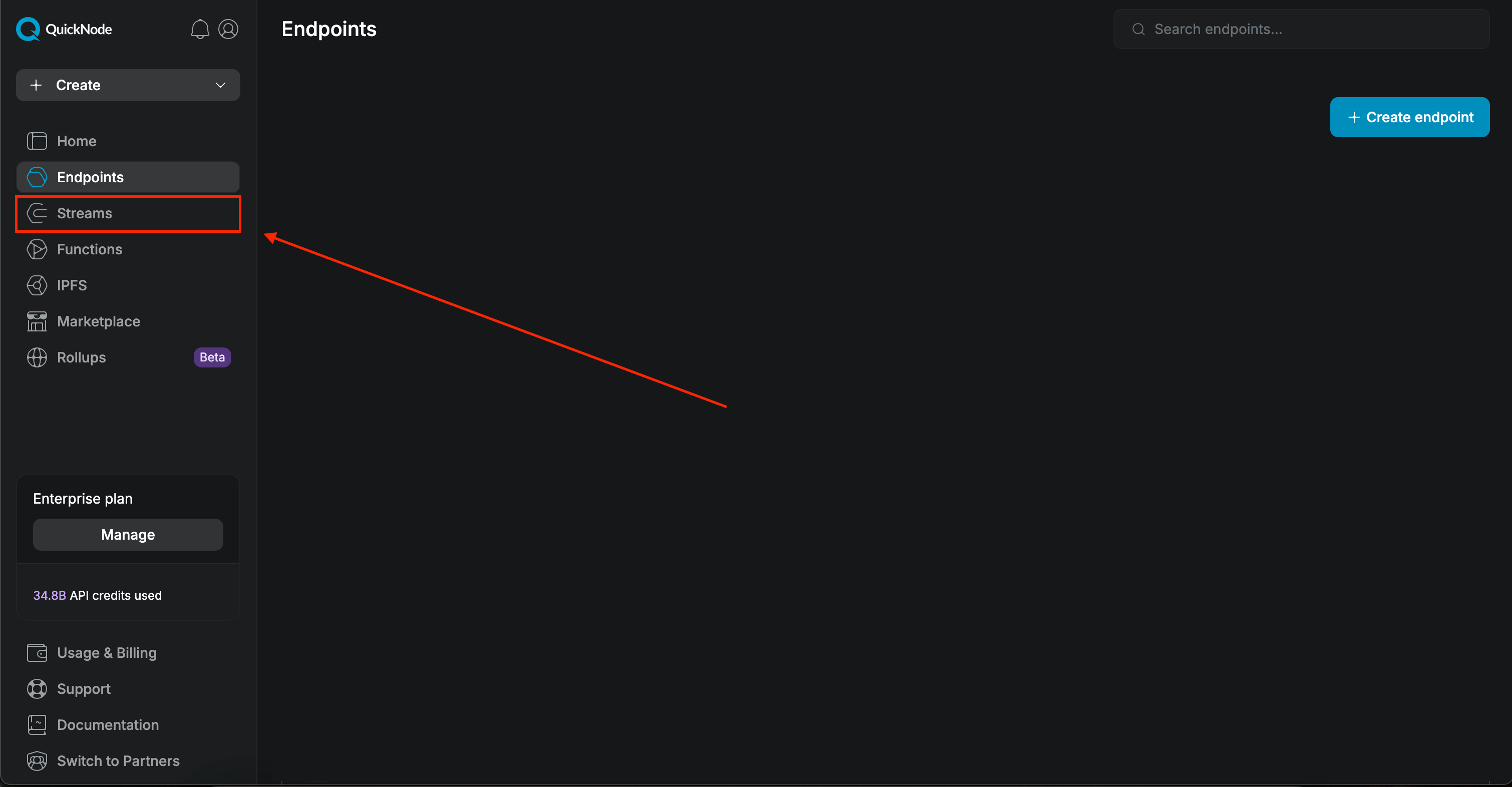
2. Click on "Streams" in the left sidebar.
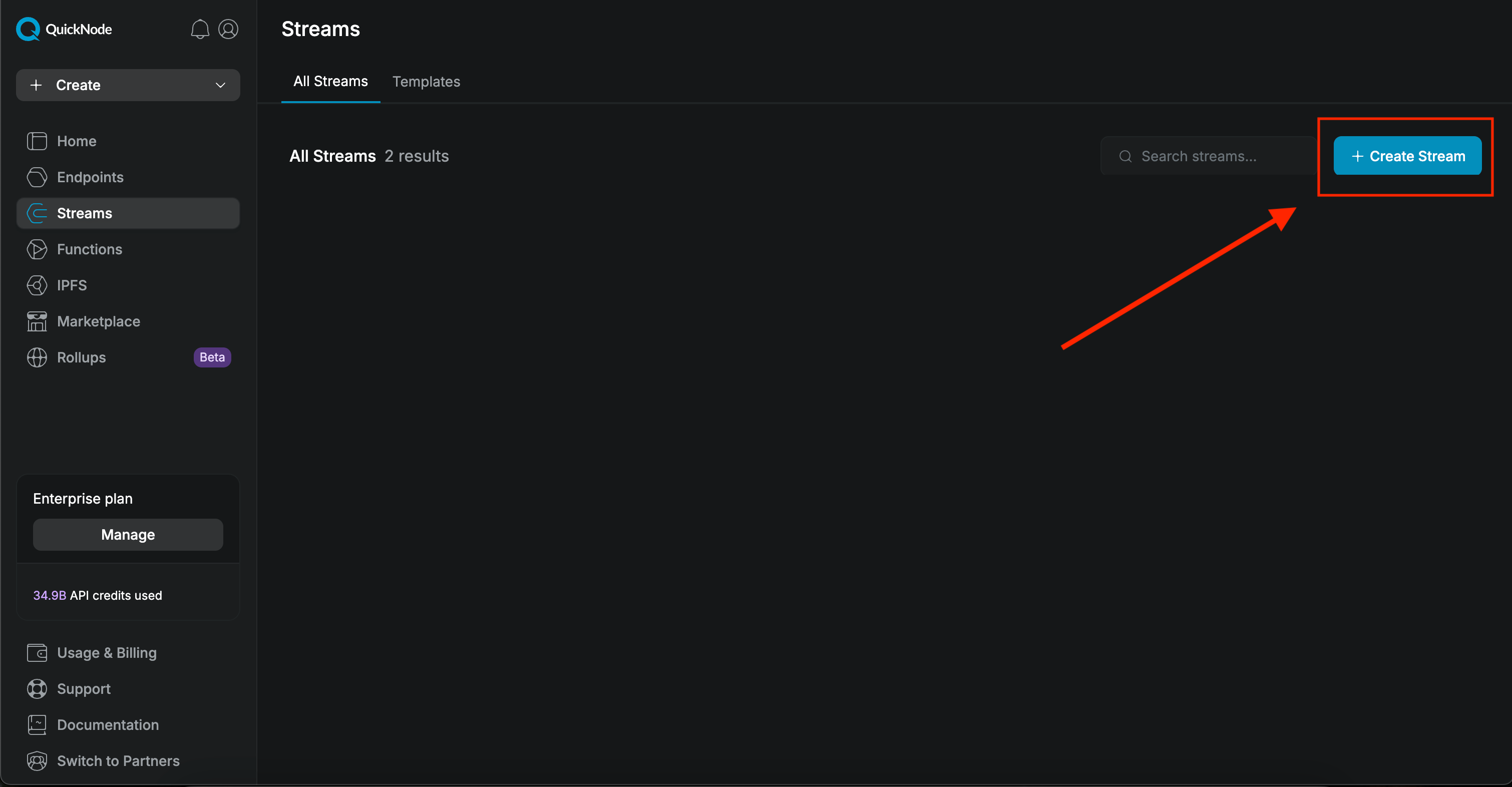
 3. Click on "Create Stream".
 ### 2. Configure Stream range
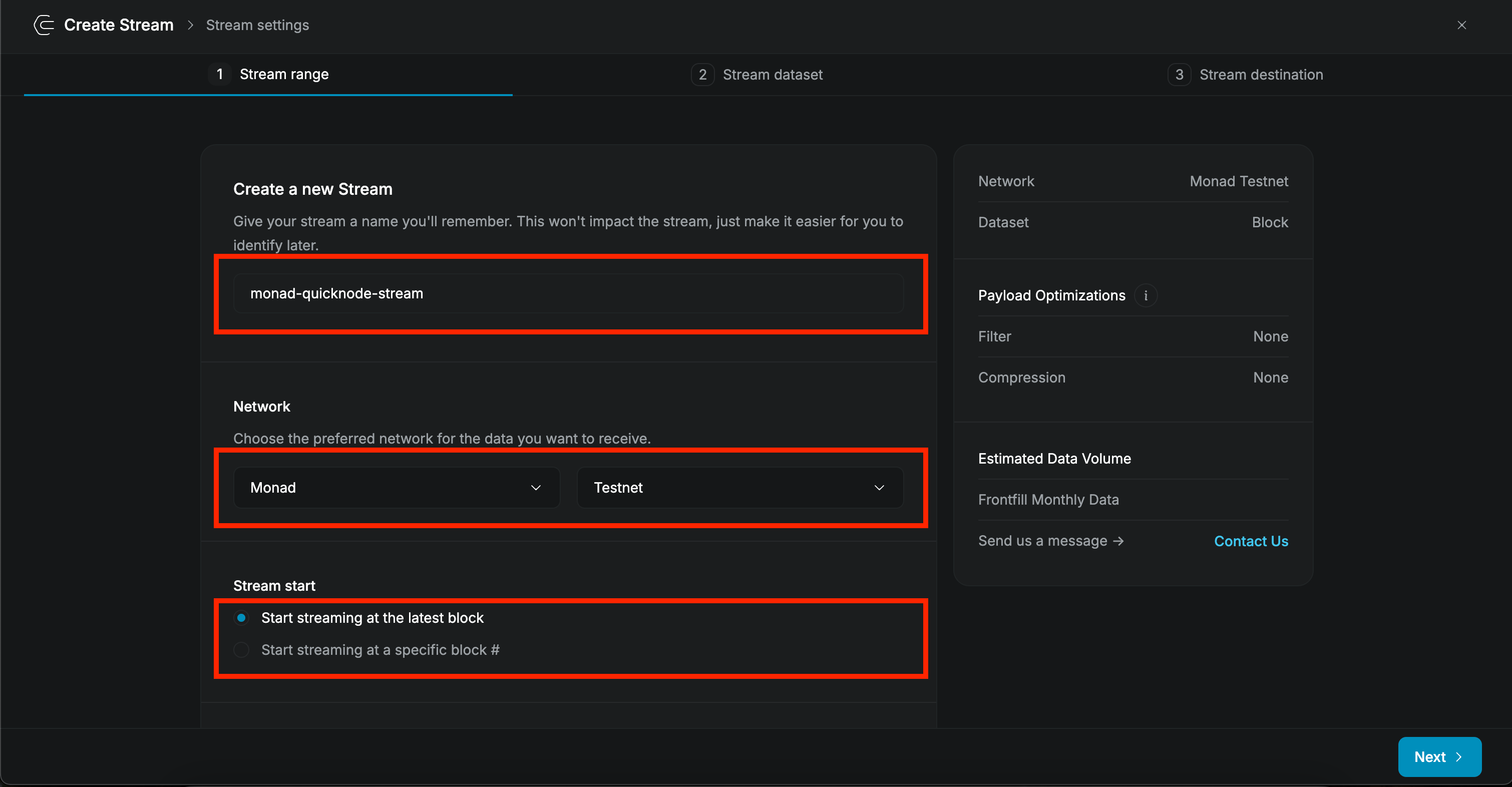
1. Give your stream a name. In this example we will name it `monad-quicknode-stream`.
2. In the "Network" section, select `Monad` from the dropdown.
3. In the "Stream Start" section you can choose to start the stream from the latest block or from a specific block number.
### 2. Configure Stream range
1. Give your stream a name. In this example we will name it `monad-quicknode-stream`.
2. In the "Network" section, select `Monad` from the dropdown.
3. In the "Stream Start" section you can choose to start the stream from the latest block or from a specific block number.
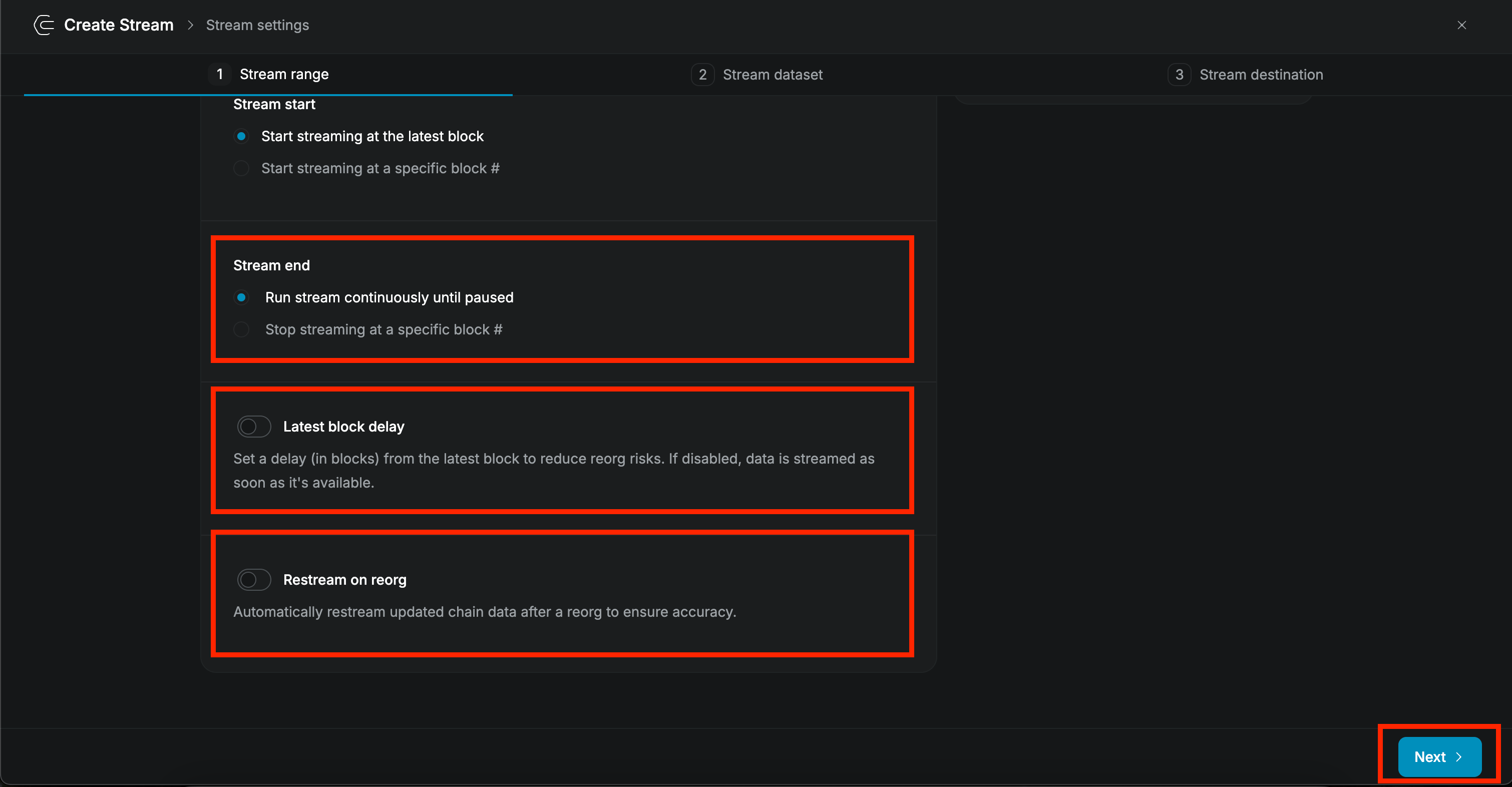
 4. In the "Stream End" section you can choose to end the stream until manually paused or at a specific block number.
5. In the "Latest block delay" section, you can set a block number as a delay in receiving data. For this guide we will receive data as soon as it is available.
4. In the "Stream End" section you can choose to end the stream until manually paused or at a specific block number.
5. In the "Latest block delay" section, you can set a block number as a delay in receiving data. For this guide we will receive data as soon as it is available.
For example: If the block delay is `3`, you will receive data only when there is **new data available** for `3` blocks including latest block, this helps in case there is a reorg.
6. In the "Restream on reorg" section you can decide if you would like to get updated data restreamed in case of a reorg. For this guide we will keep this off.
7. Once done click "Next".
 ### 3. Set up dataset
1. In the "Dataset" dropdown you can select the dataset of your choice according to the use case. For this guide we will select `Block with Receipts` since we want to filter logs with events emitted by WMON contract.
* Optional: Enable "Batch messages" to receive multiple blocks in a single message. This can be useful when the stream is not starting from the latest block.
### 3. Set up dataset
1. In the "Dataset" dropdown you can select the dataset of your choice according to the use case. For this guide we will select `Block with Receipts` since we want to filter logs with events emitted by WMON contract.
* Optional: Enable "Batch messages" to receive multiple blocks in a single message. This can be useful when the stream is not starting from the latest block.
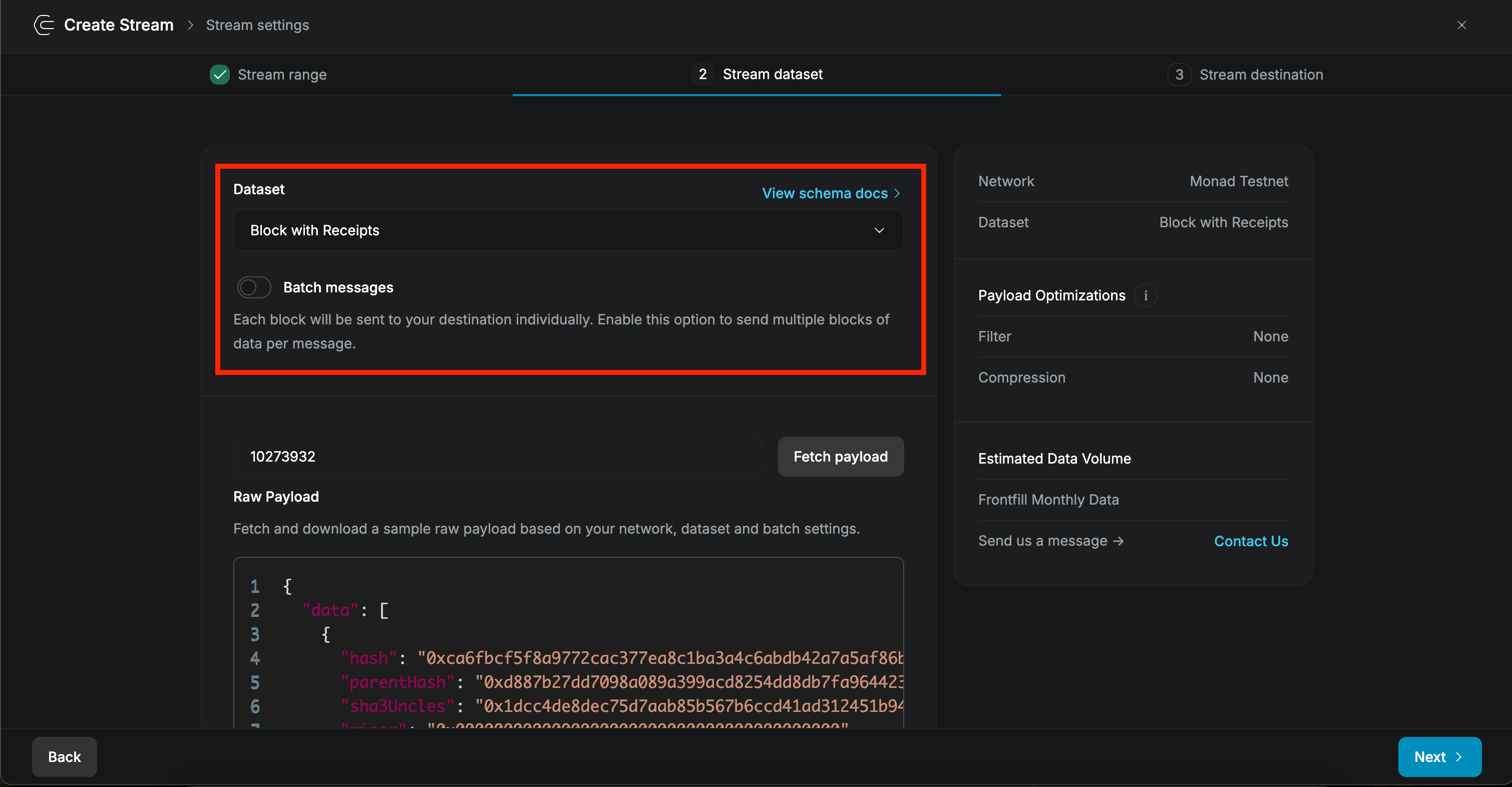 2. Feel free to test it out by entering a block number and clicking "Fetch payload".
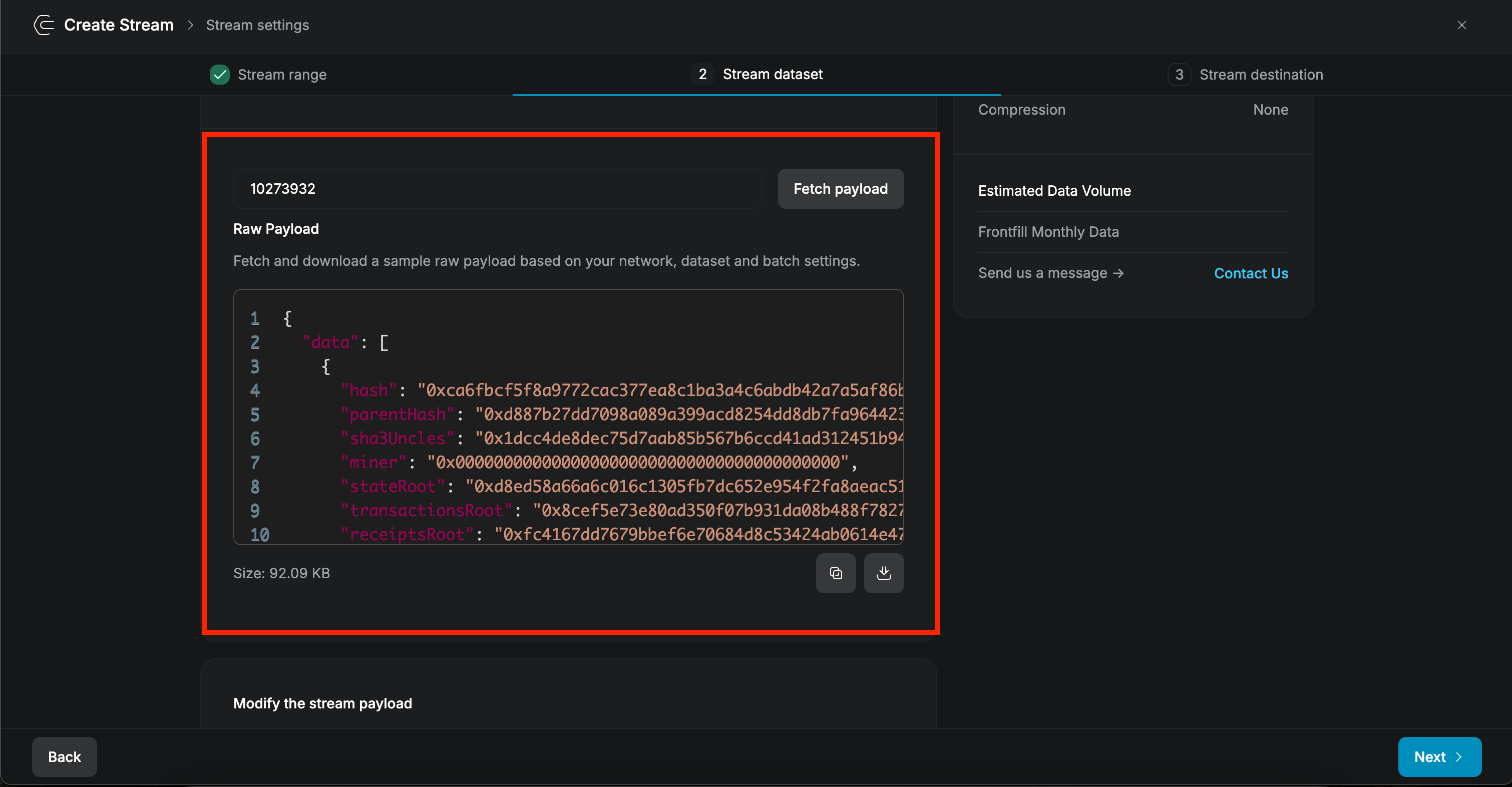 ### 4. Create WMON Transfer filter
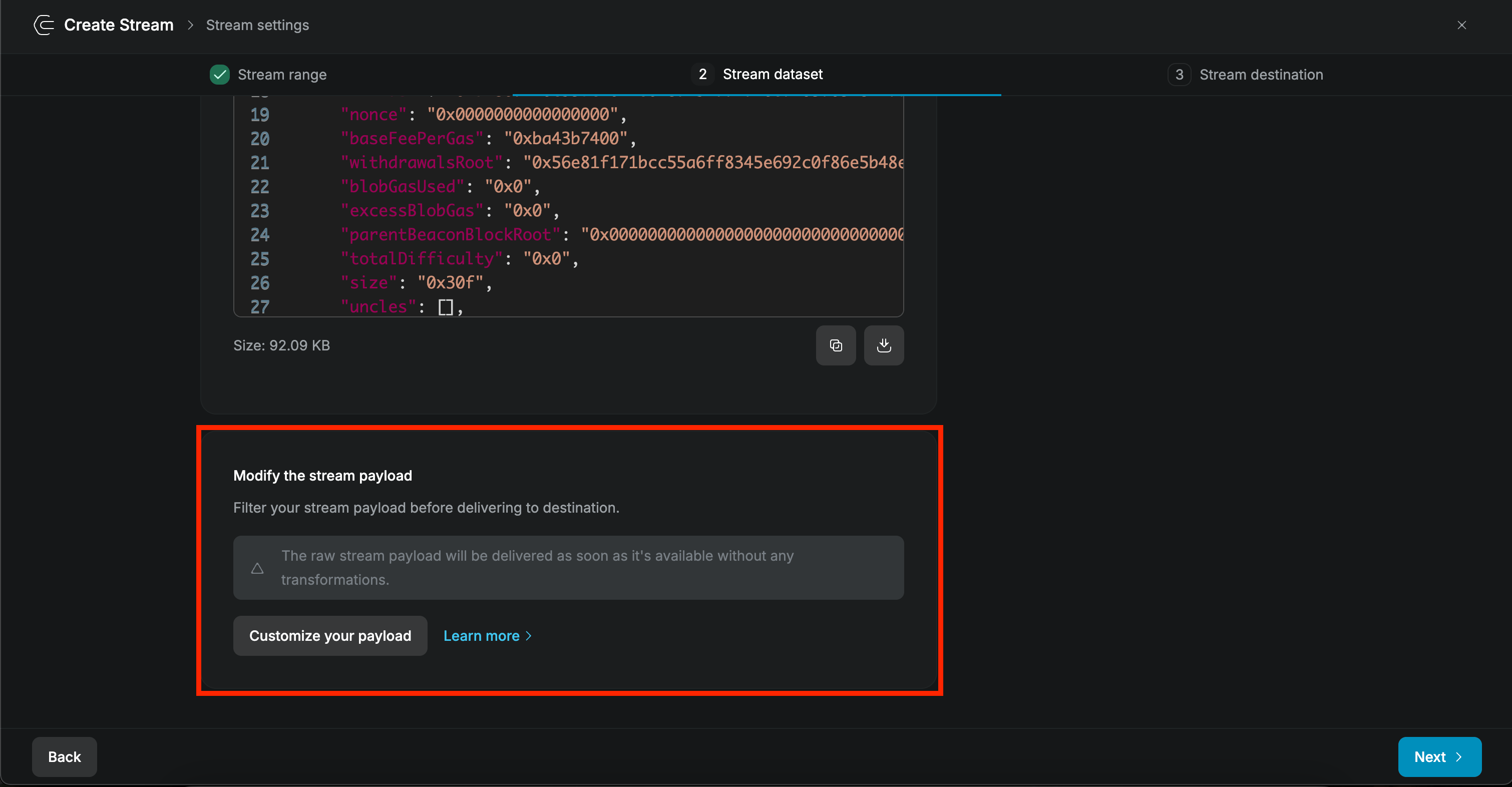
1. In the "Modify the stream payload" section, you can define filters by clicking **"Customize your payload"**. For this guide, we will filter to only retrieve receipts involving WMON transfers.
### 4. Create WMON Transfer filter
1. In the "Modify the stream payload" section, you can define filters by clicking **"Customize your payload"**. For this guide, we will filter to only retrieve receipts involving WMON transfers.
 2. QuickNode has a set of filter templates. Select the **Decoded ERC20 transfers** template:
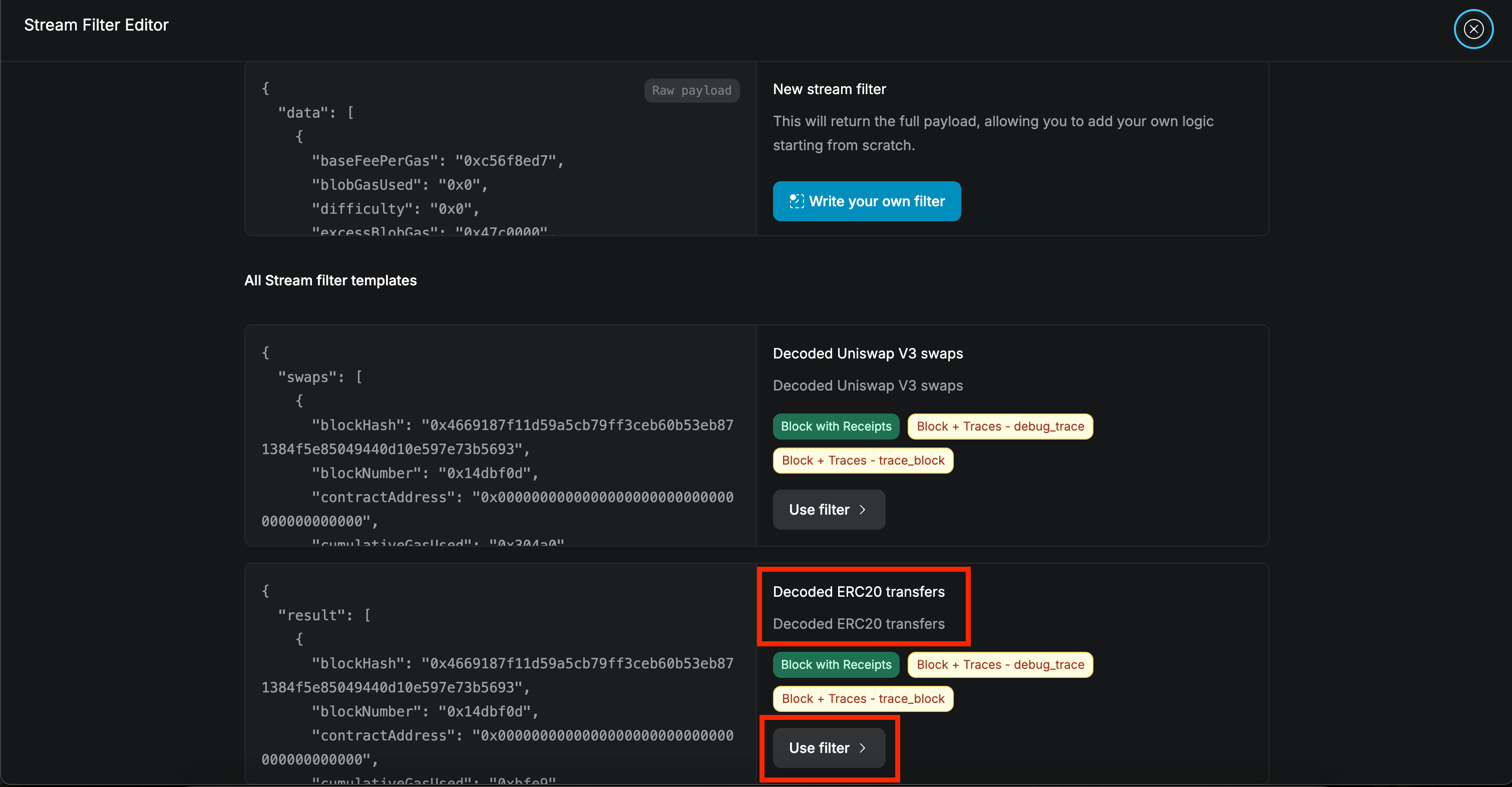 3. The editor will appear:
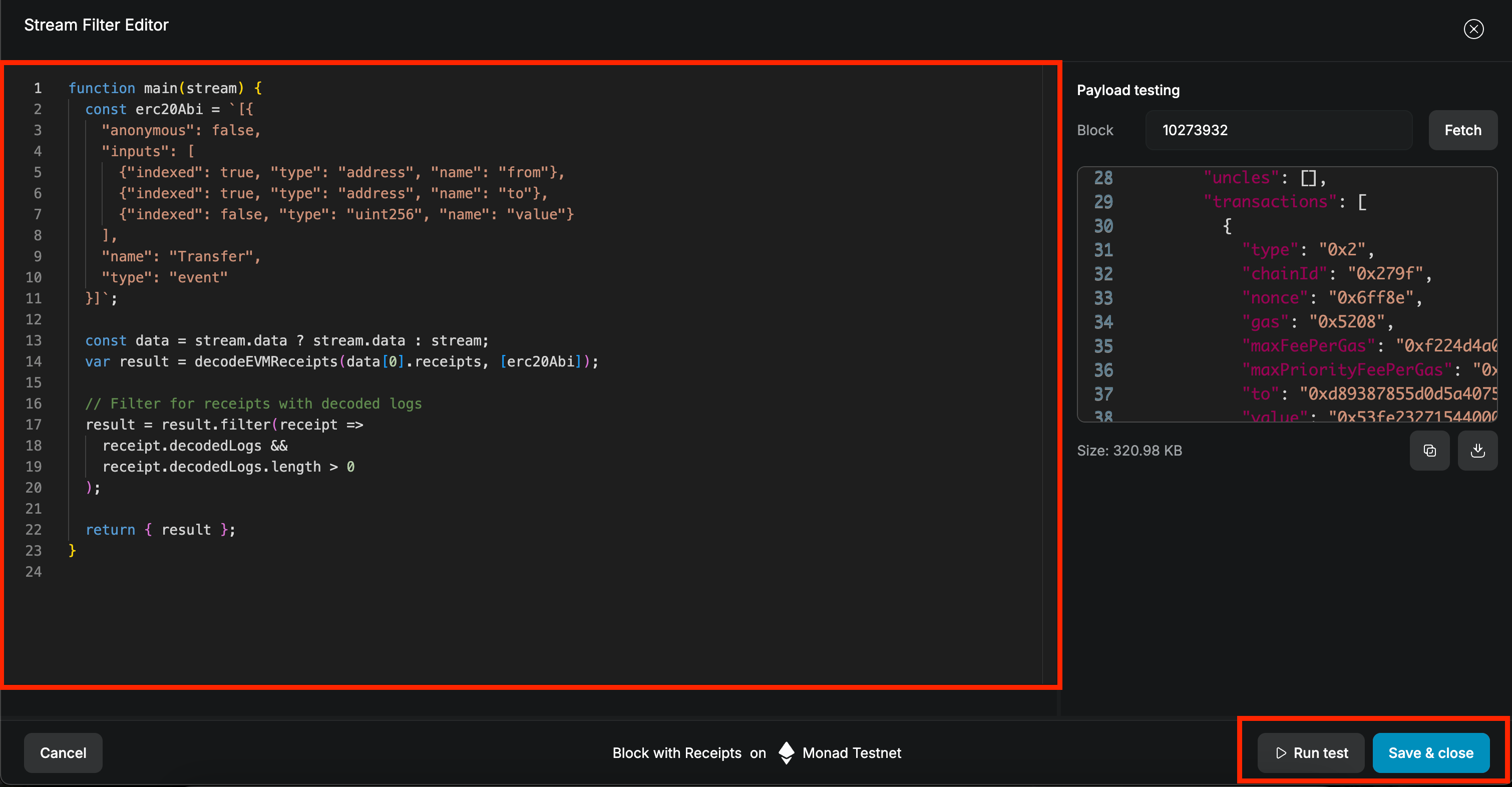 The current filter allows all ERC20 transfers through. Replace the filter code with:
```js lines theme={null}
function main(stream) {
const erc20Abi = `[{
"anonymous": false,
"inputs": [
{"indexed": true, "type": "address", "name": "from"},
{"indexed": true, "type": "address", "name": "to"},
{"indexed": false, "type": "uint256", "name": "value"}
],
"name": "Transfer",
"type": "event"
}]`;
const data = stream.data ? stream.data : stream;
// Decodes logs from the receipts that match the Transfer event ABI
var result = decodeEVMReceipts(data[0].receipts, [erc20Abi]);
// Filter for receipts with decoded logs
result = result.filter(receipt => {
// Check if there are any ERC20 transfers
if(receipt.decodedLogs) {
// Check if there are any WMON transfers
receipt.decodedLogs = receipt.decodedLogs.filter(log => log.address == "0xFb8bf4c1CC7a94c73D209a149eA2AbEa852BC541");
// Return receipt if there logs which indicate a WMON transfer.
return receipt.decodedLogs.length > 0;
}
// Return nothing if there are no ERC20 transfers.
return false;
});
return { result };
}
```
4. Test the filter with "Run test"
The current filter allows all ERC20 transfers through. Replace the filter code with:
```js lines theme={null}
function main(stream) {
const erc20Abi = `[{
"anonymous": false,
"inputs": [
{"indexed": true, "type": "address", "name": "from"},
{"indexed": true, "type": "address", "name": "to"},
{"indexed": false, "type": "uint256", "name": "value"}
],
"name": "Transfer",
"type": "event"
}]`;
const data = stream.data ? stream.data : stream;
// Decodes logs from the receipts that match the Transfer event ABI
var result = decodeEVMReceipts(data[0].receipts, [erc20Abi]);
// Filter for receipts with decoded logs
result = result.filter(receipt => {
// Check if there are any ERC20 transfers
if(receipt.decodedLogs) {
// Check if there are any WMON transfers
receipt.decodedLogs = receipt.decodedLogs.filter(log => log.address == "0xFb8bf4c1CC7a94c73D209a149eA2AbEa852BC541");
// Return receipt if there logs which indicate a WMON transfer.
return receipt.decodedLogs.length > 0;
}
// Return nothing if there are no ERC20 transfers.
return false;
});
return { result };
}
```
4. Test the filter with "Run test"
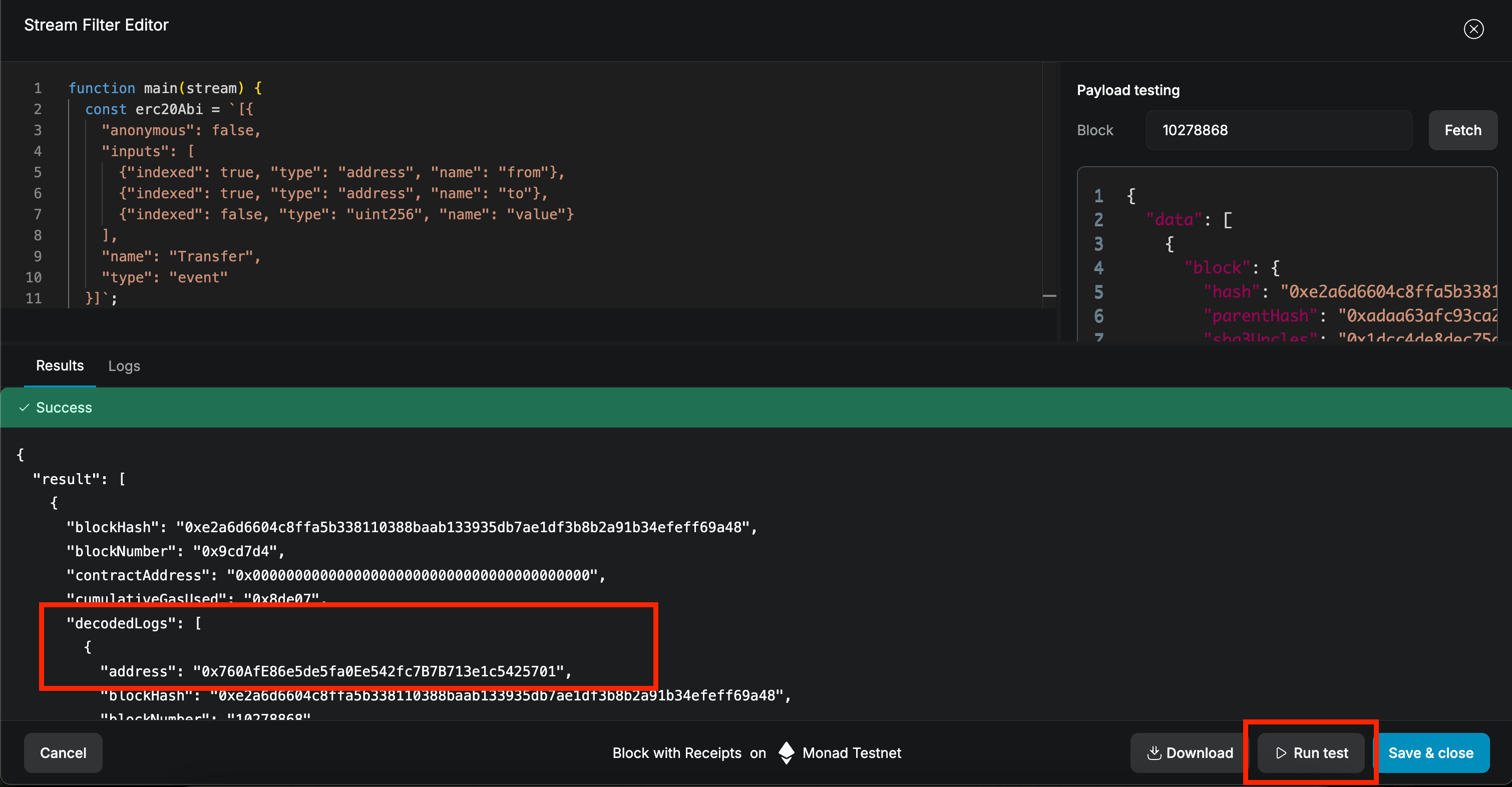 5. "Save & close" to save the filter.
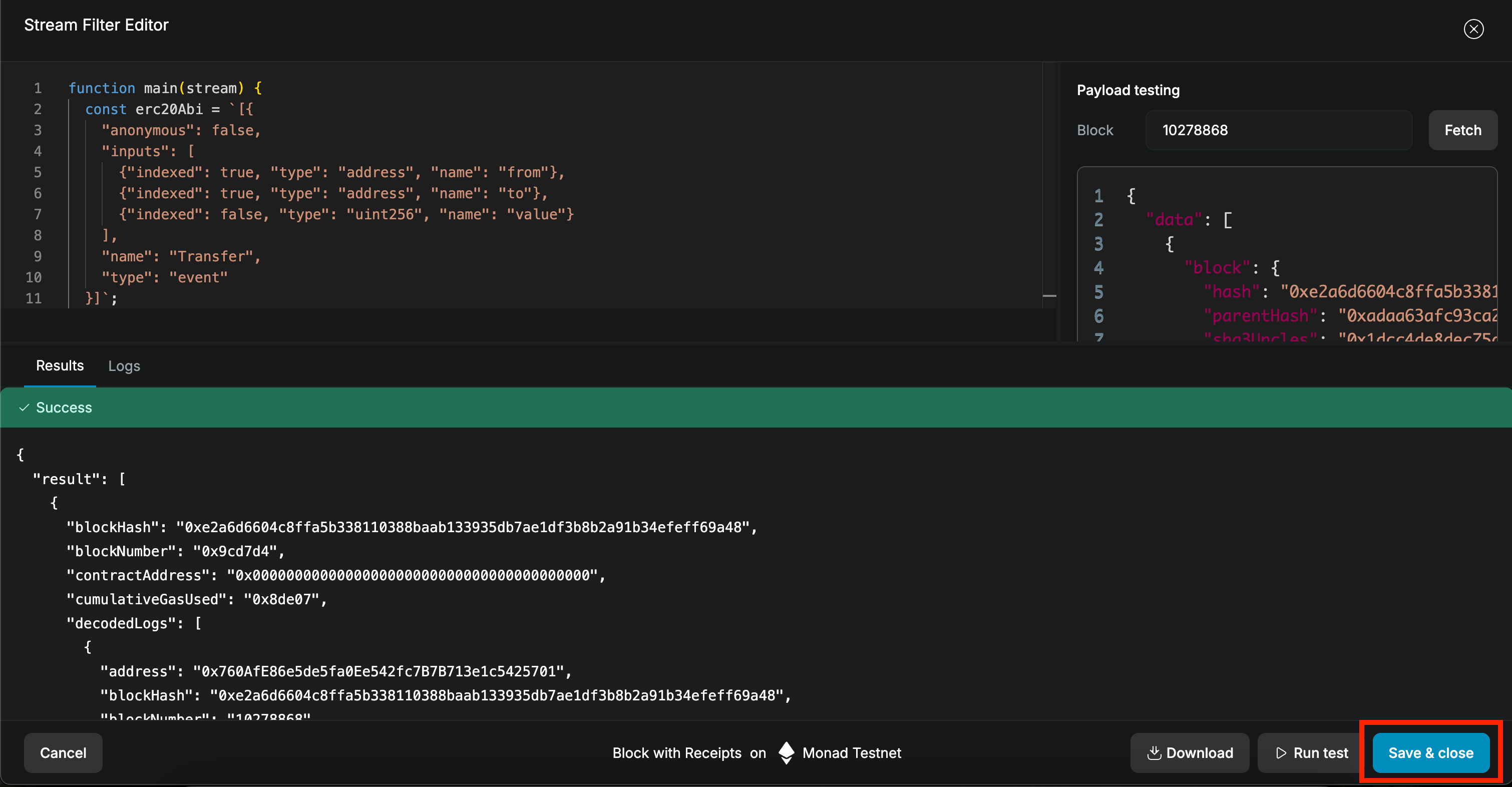 6. Click "Next"
### 5. Set up Stream destination
For this guide we will keep the stream destination simple and use `Webhook` as the "Destination Type".
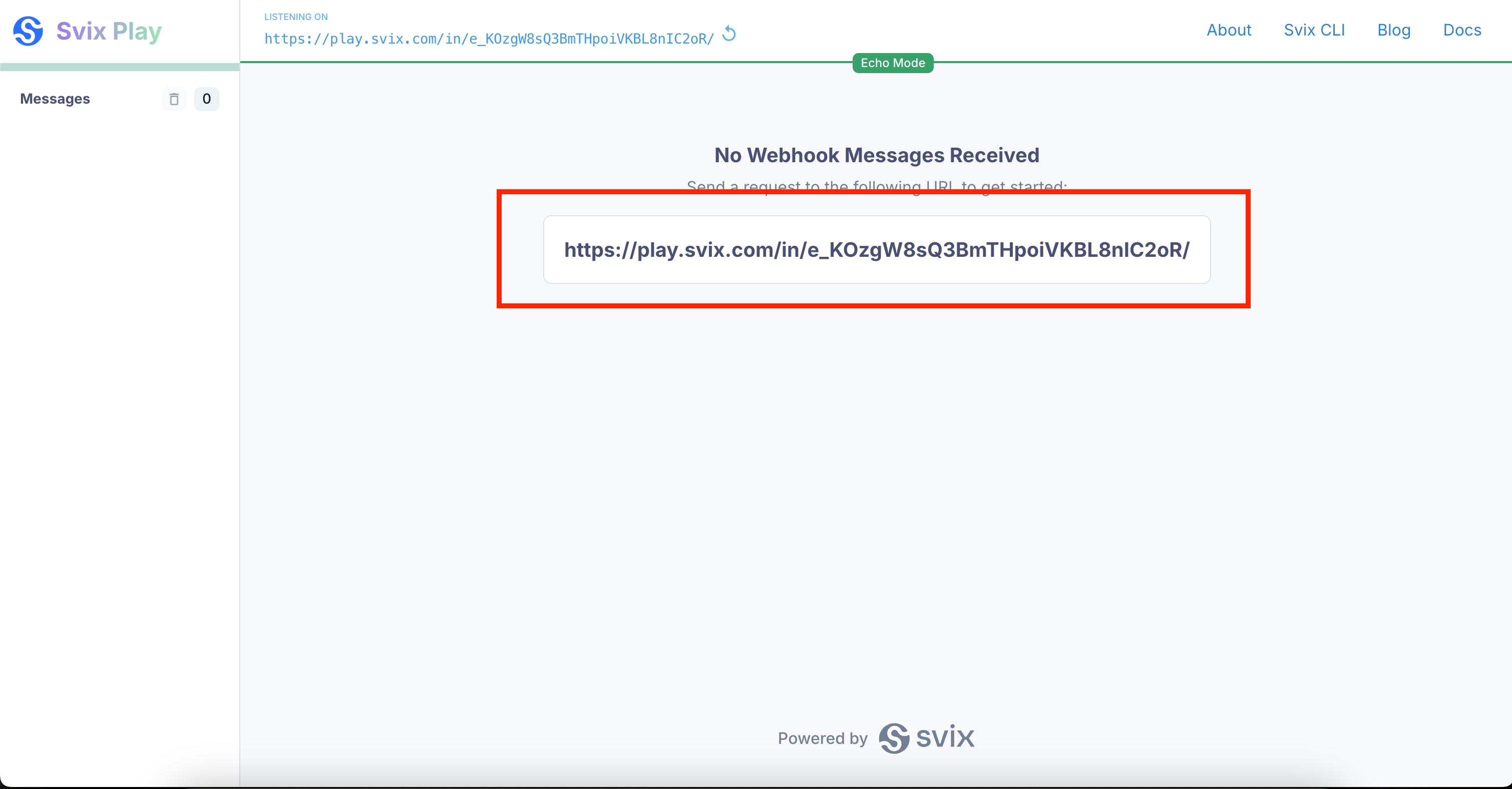
1. Let's use a site like [Svix Play](https://www.svix.com/play/) to quickly get a webhook and test the stream.
6. Click "Next"
### 5. Set up Stream destination
For this guide we will keep the stream destination simple and use `Webhook` as the "Destination Type".
1. Let's use a site like [Svix Play](https://www.svix.com/play/) to quickly get a webhook and test the stream.
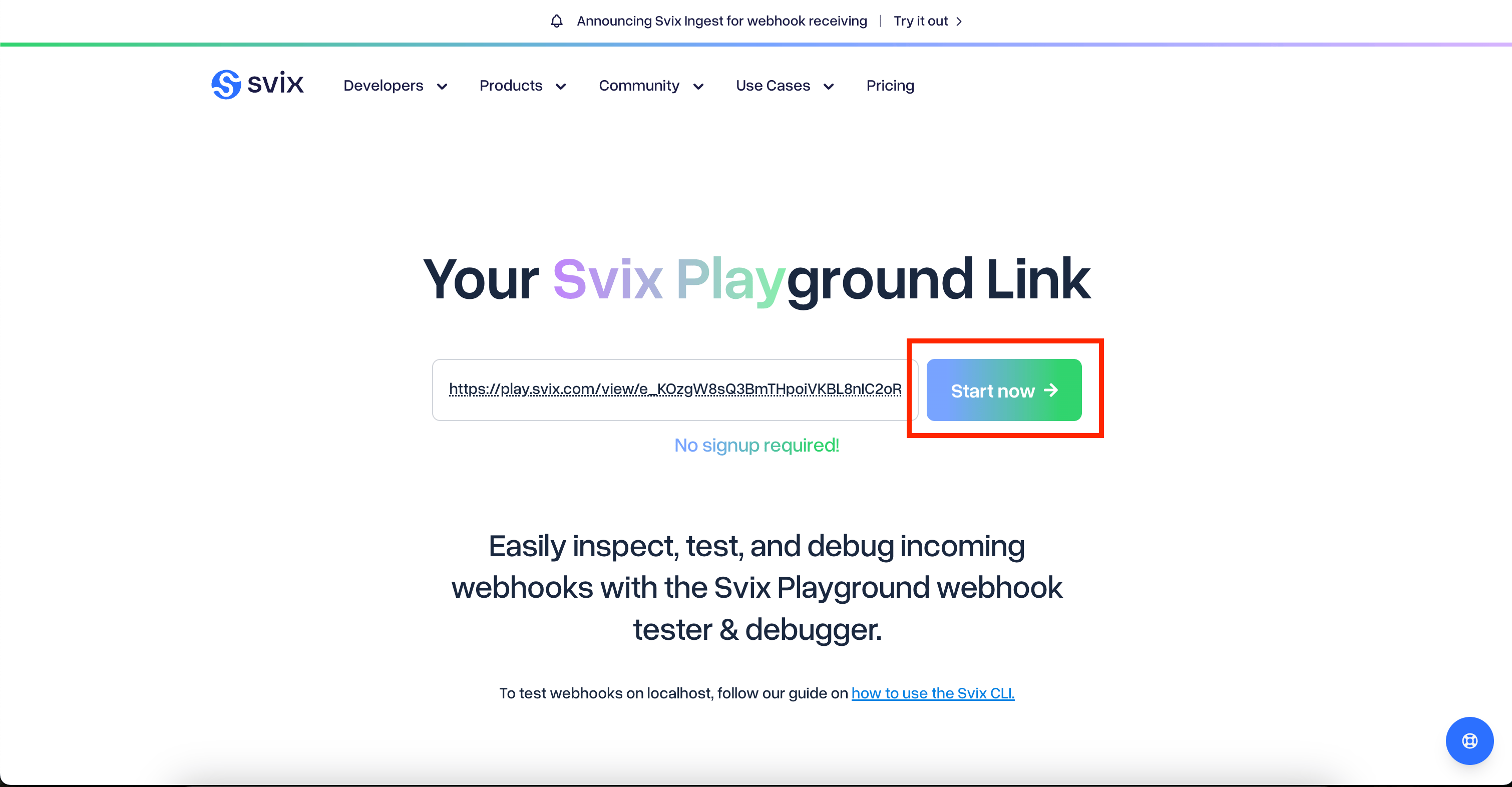 2. Copy the webhook url from Svix Play:
 3. In QuickNode:
* Select `Webhook` as destination type
* Paste your webhook URL
* We can keep the rest of the settings as default
3. In QuickNode:
* Select `Webhook` as destination type
* Paste your webhook URL
* We can keep the rest of the settings as default
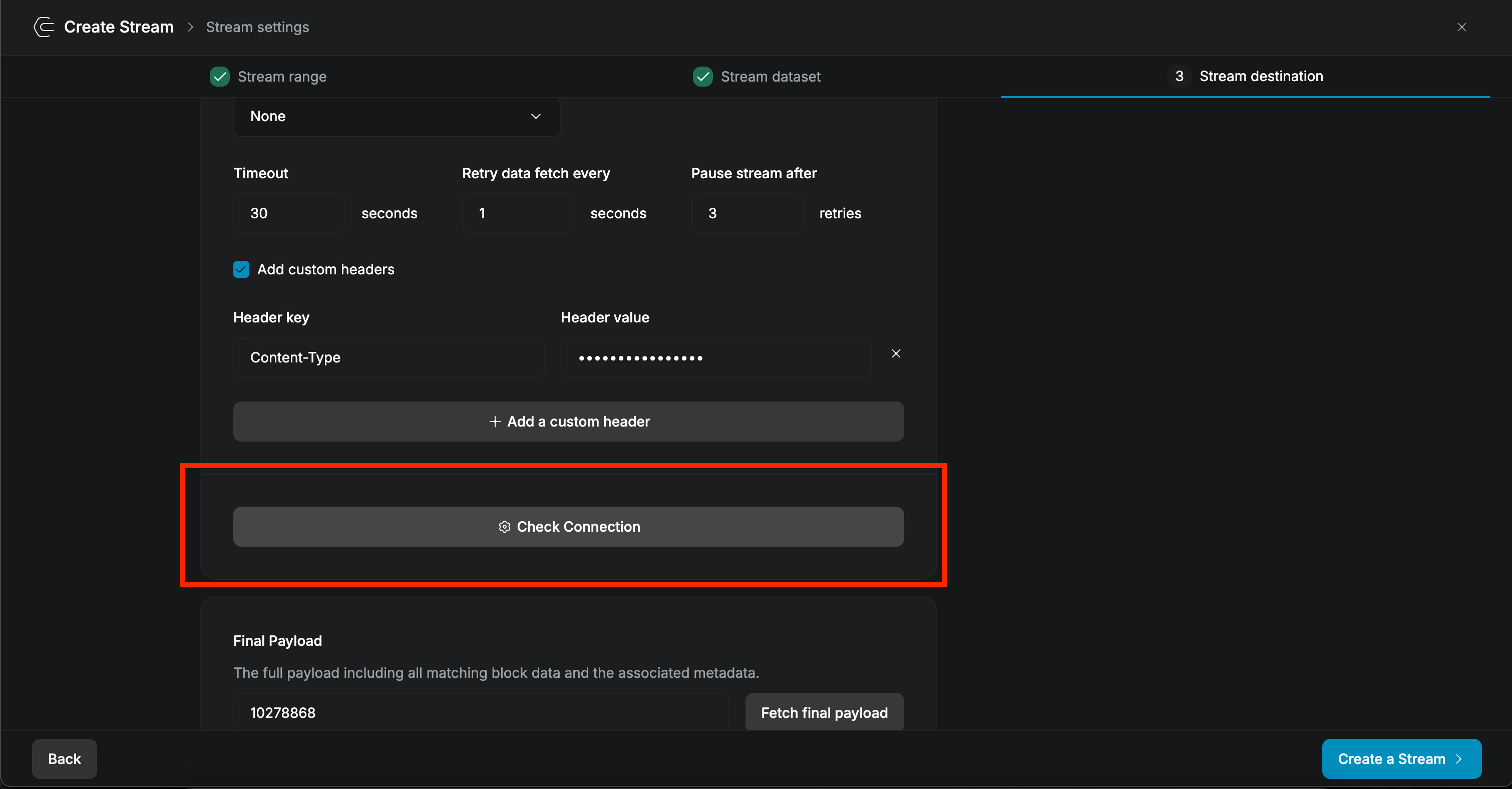
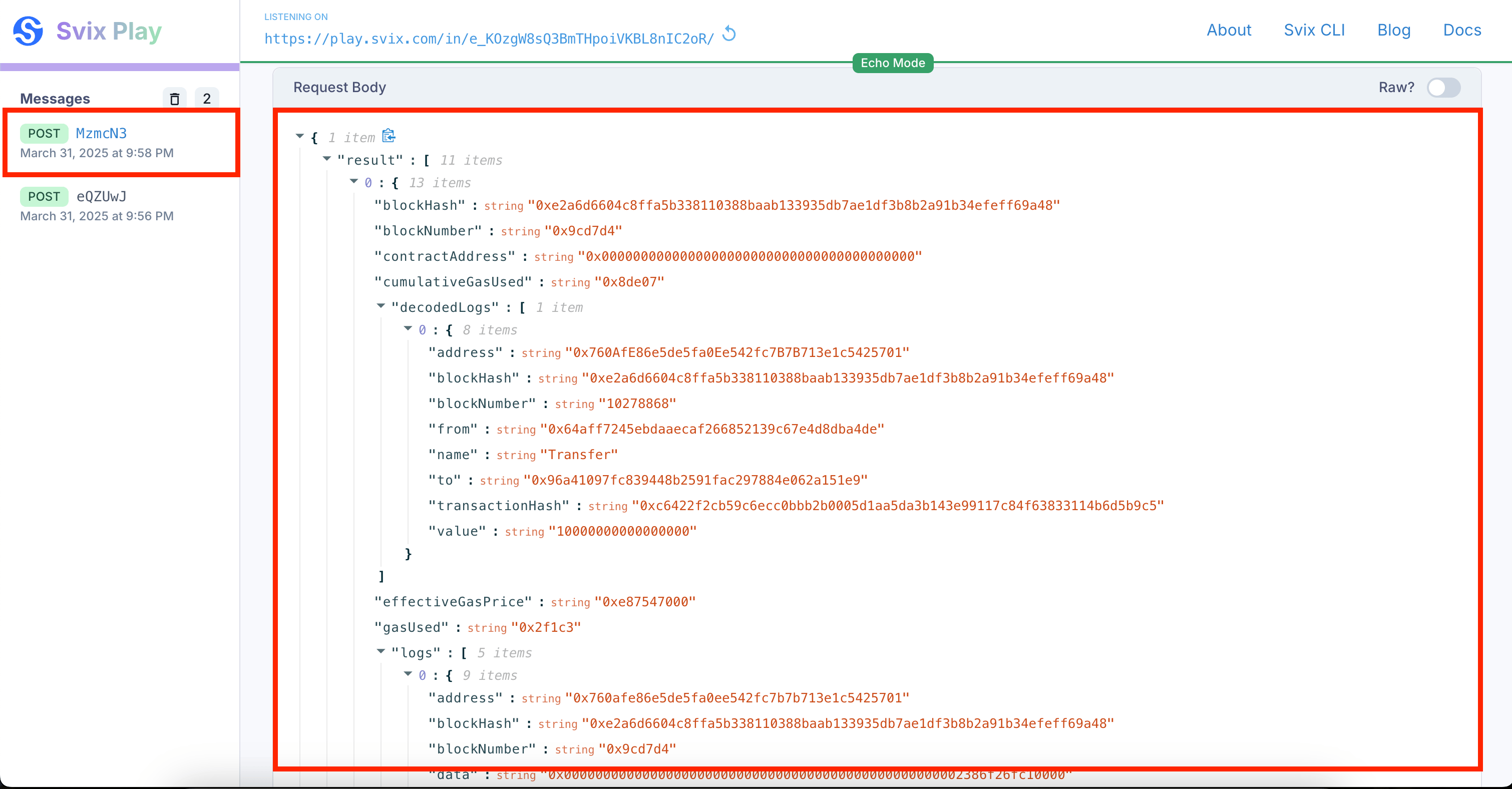
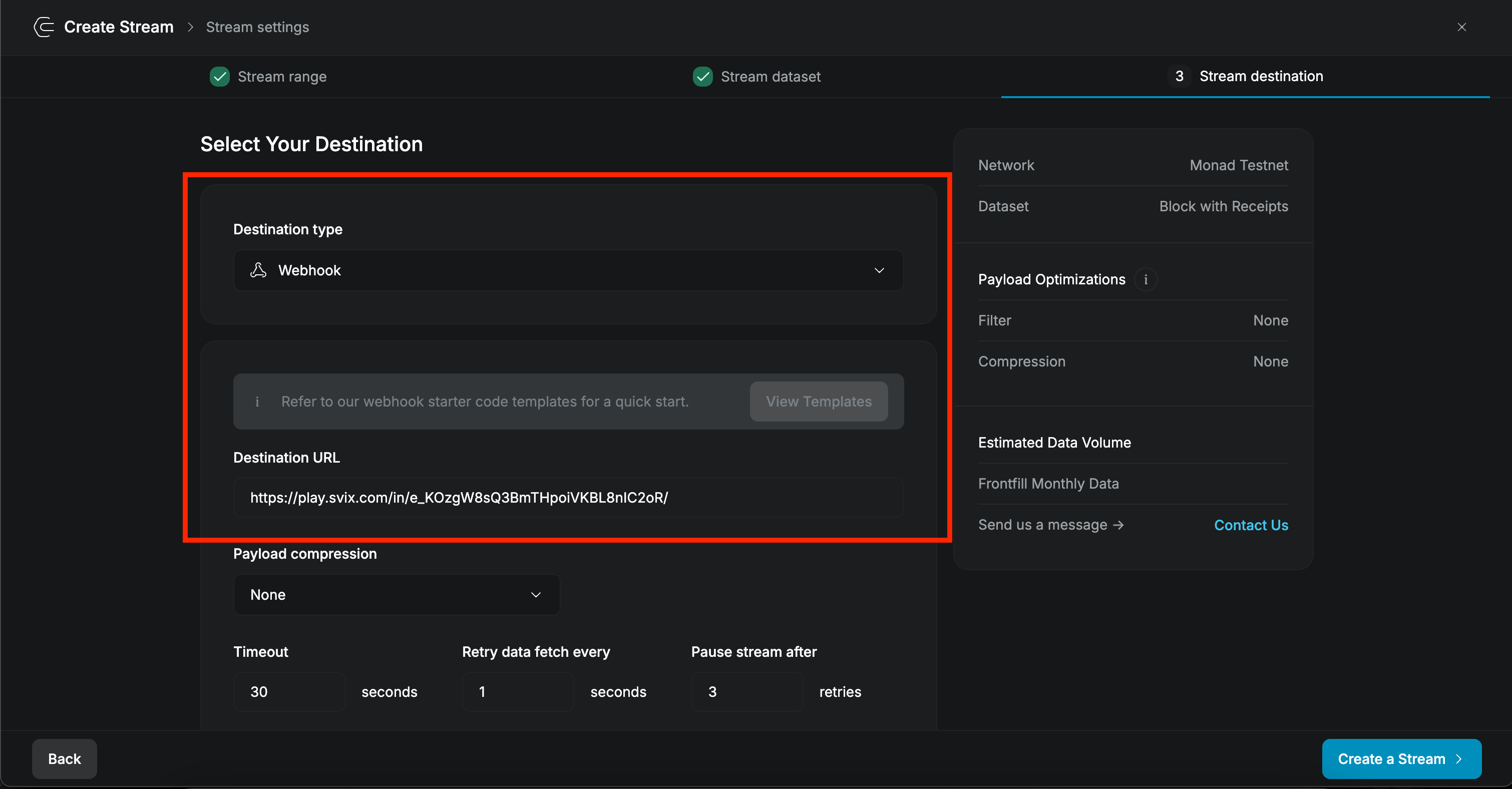 4. Click on "Check Connection" to test the webhook url. Check if you received the "PING" message in the Svix Play dashboard.
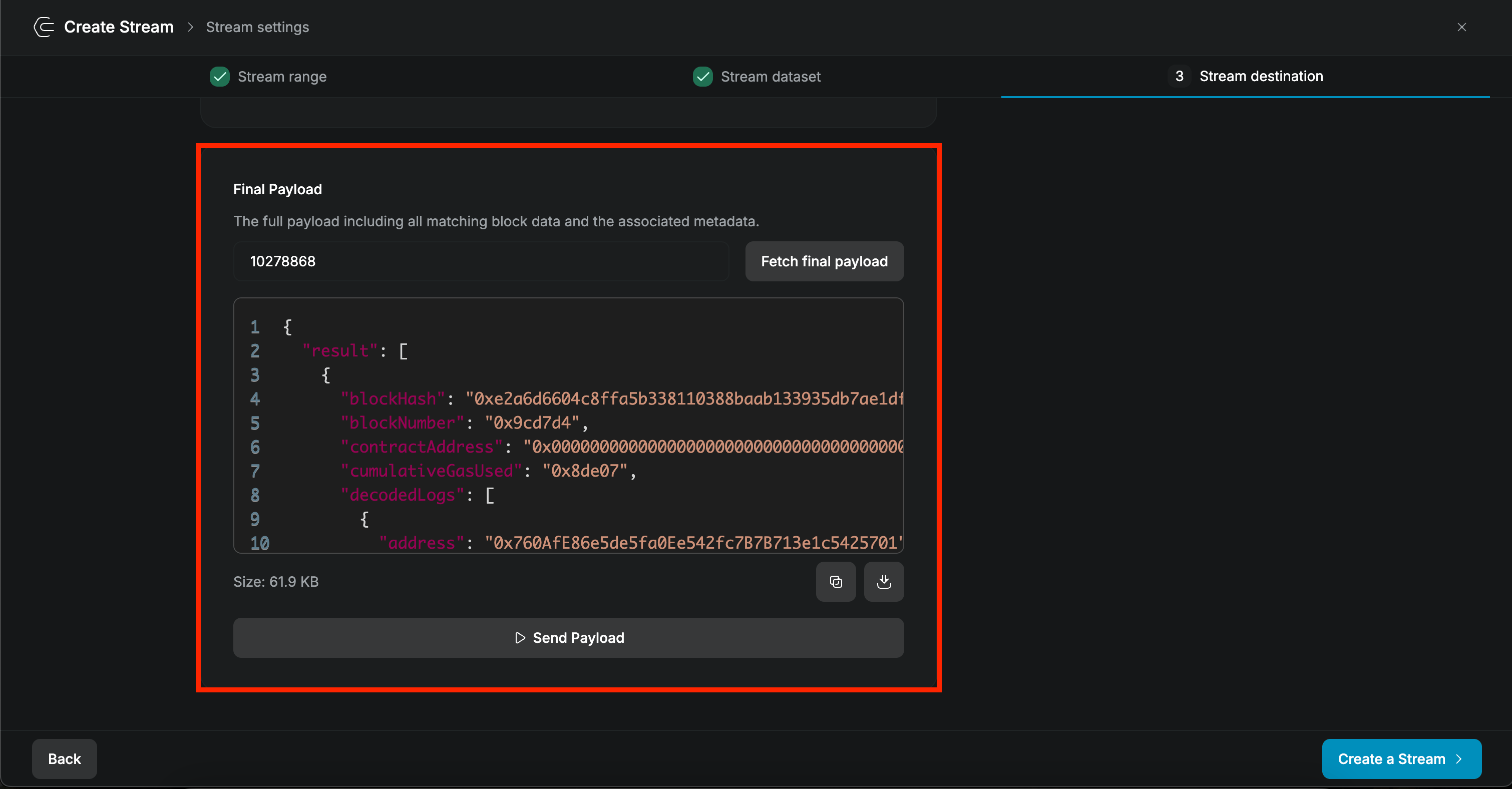
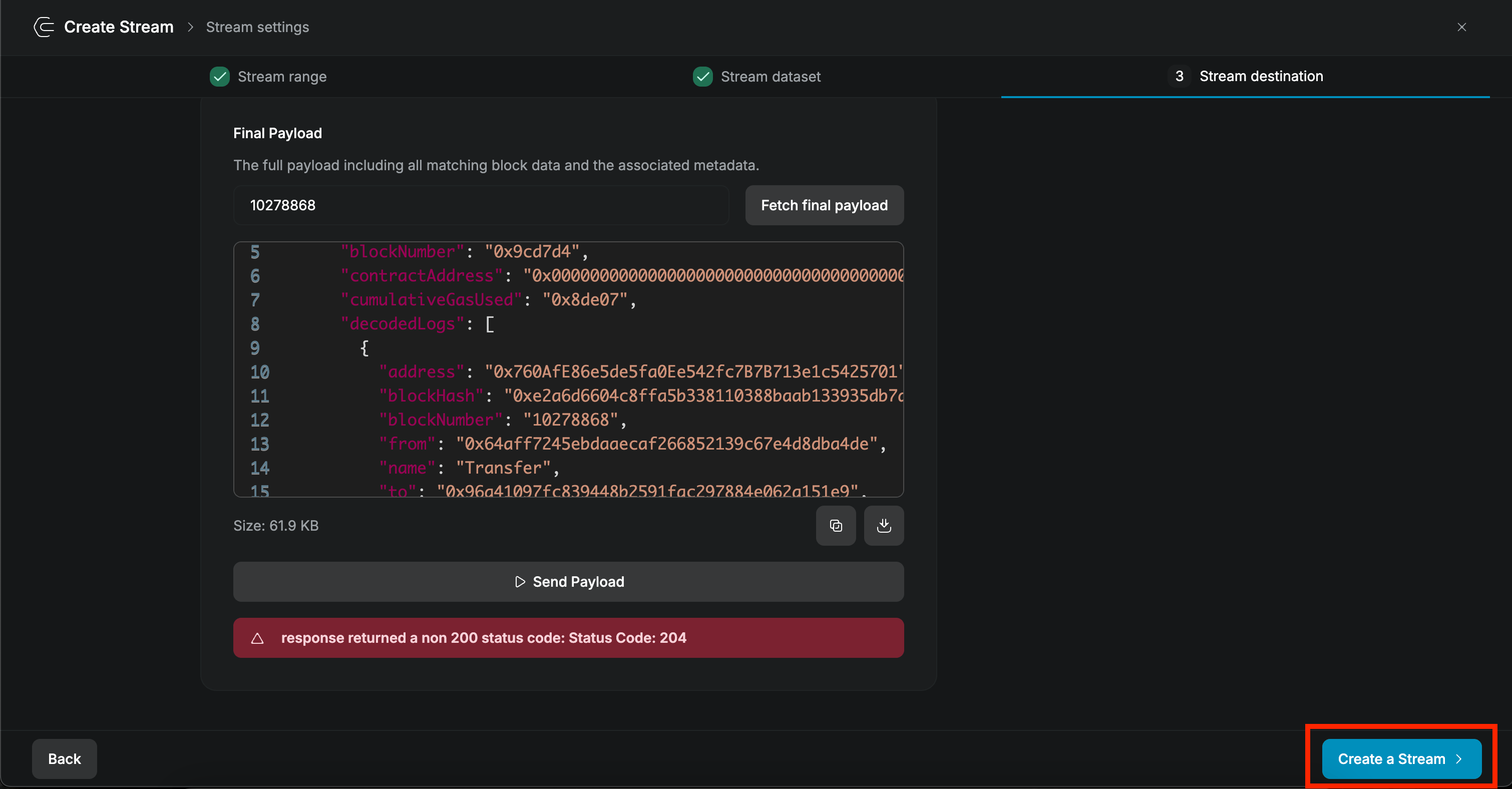
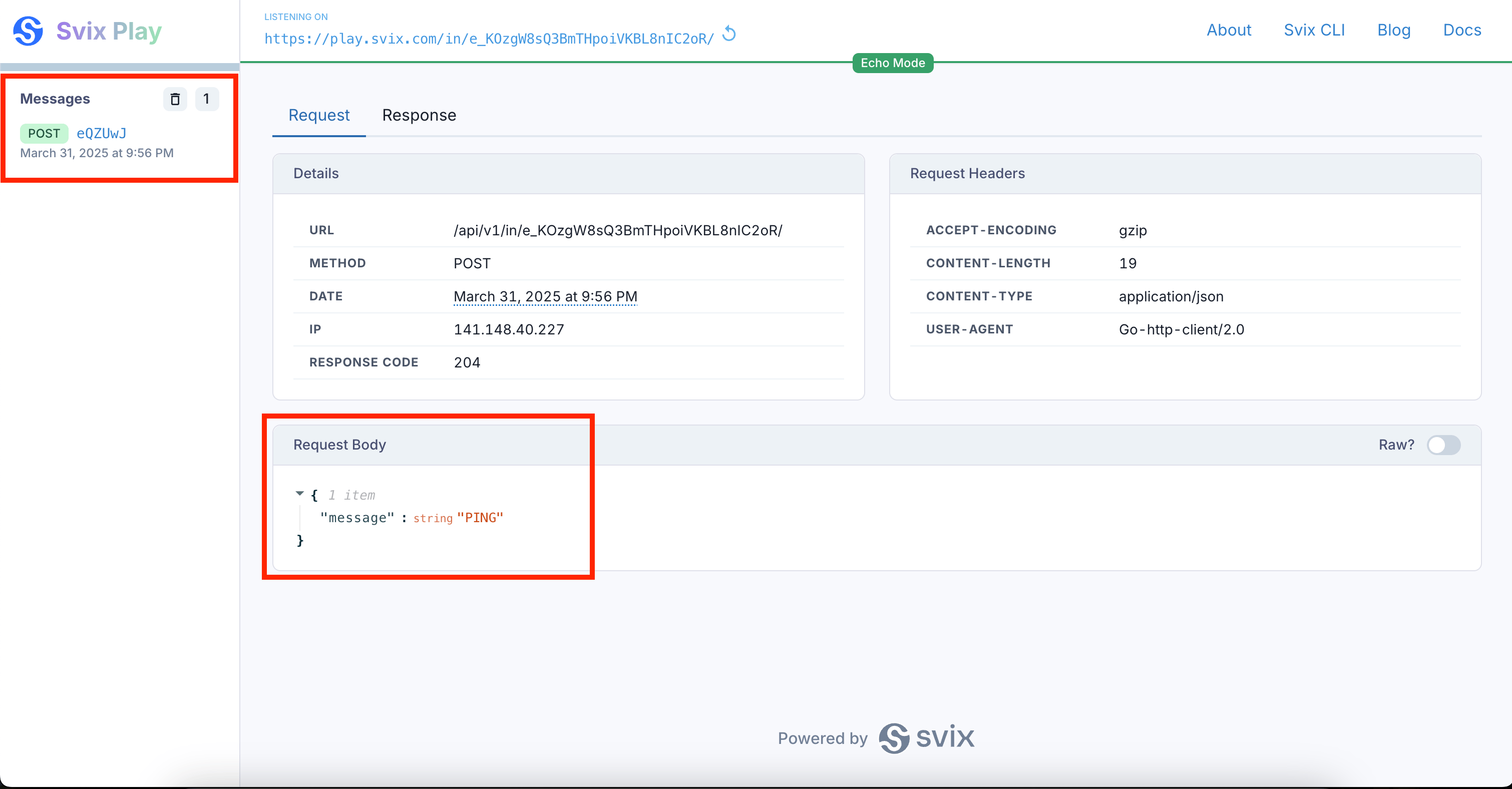 5. Click "Send Payload" to send a test payload to the webhook.
 6. Finally click "Create a Stream" to create the stream.
 ### 6. Launch and Monitor
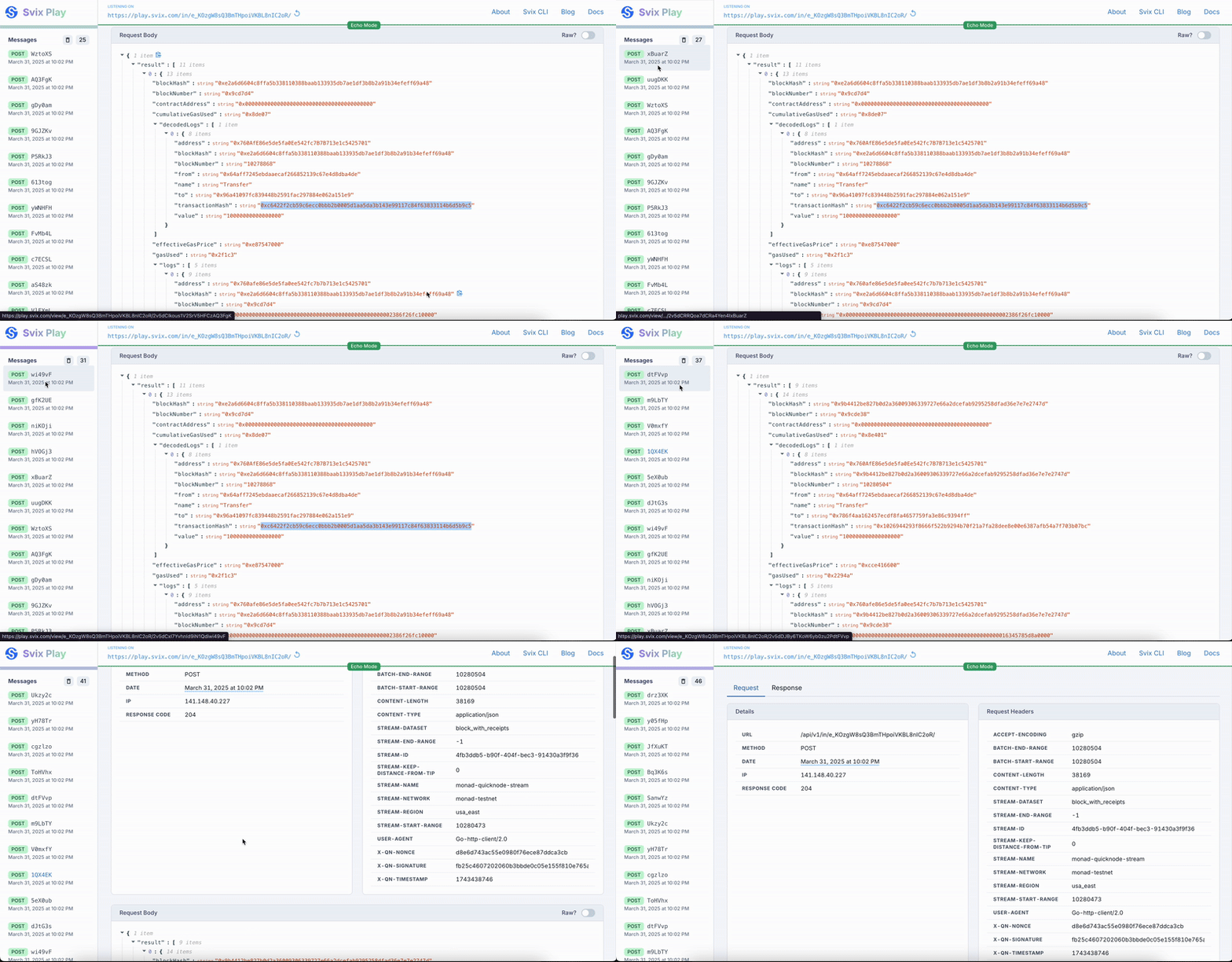
You should now be able to see the stream delivering the messages to the webhook!
### 6. Launch and Monitor
You should now be able to see the stream delivering the messages to the webhook!
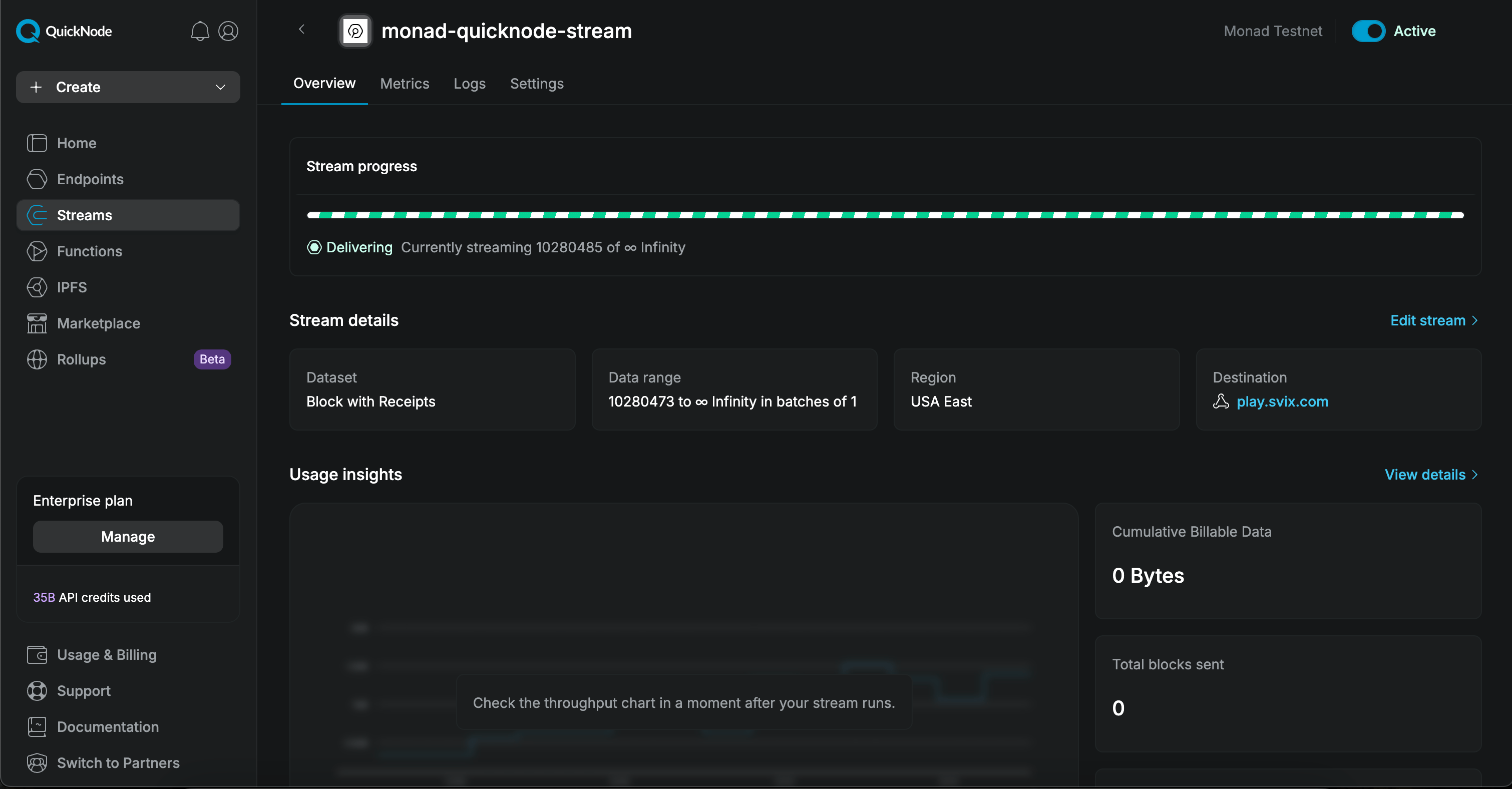
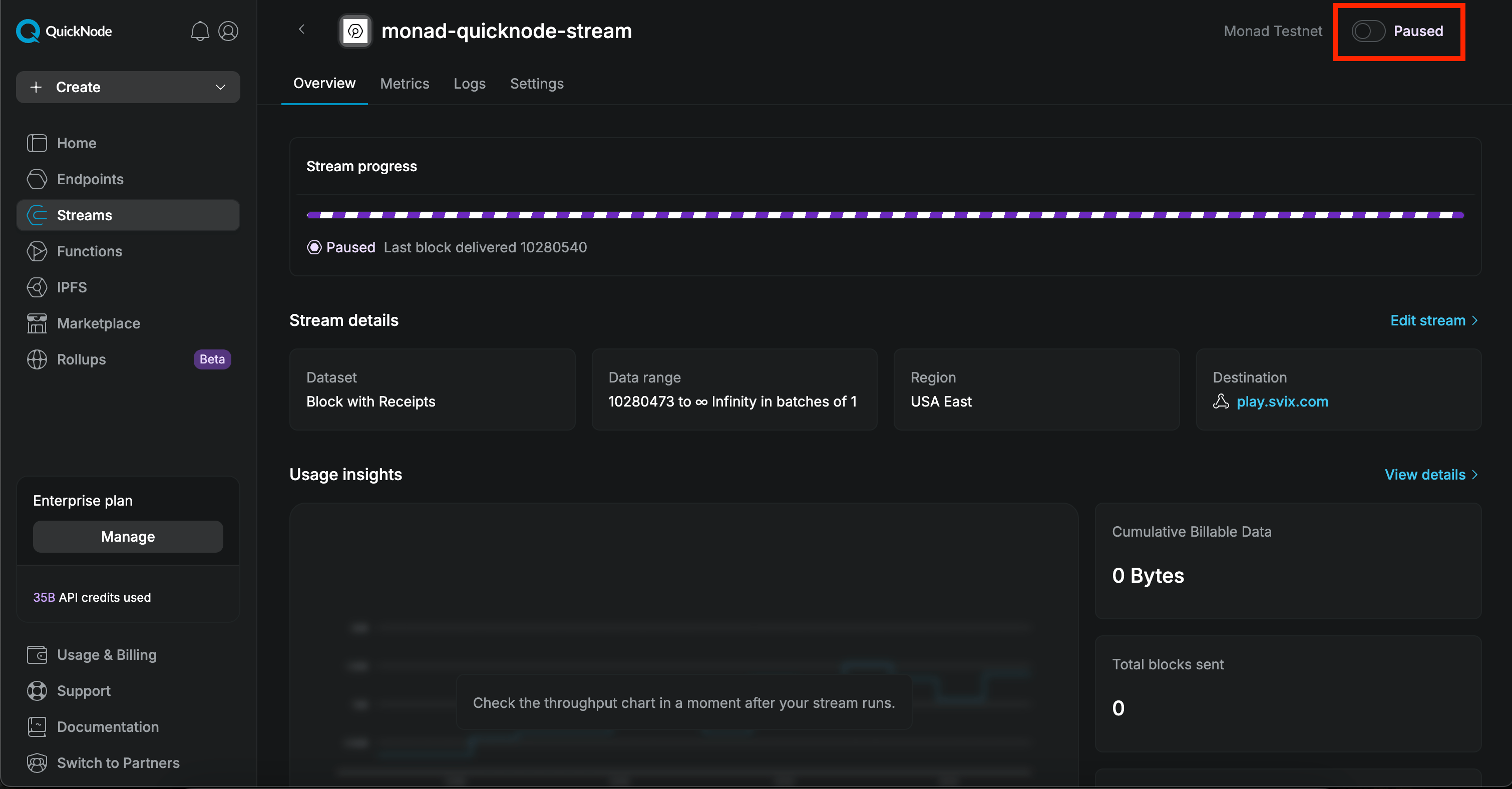
 You can pause the stream by clicking the switch in the top right corner.
 ## Next Steps
* Monitor your stream's performance in the QuickNode dashboard
* Adjust filter parameters as needed
* Connect to your production webhook endpoint when ready
Your stream will now track all WMON transfers until manually paused or until reaching your specified end block.
## Next Steps
* Monitor your stream's performance in the QuickNode dashboard
* Adjust filter parameters as needed
* Connect to your production webhook endpoint when ready
Your stream will now track all WMON transfers until manually paused or until reaching your specified end block.